
EMV Refund Feature
Designing an optimal user flow and UI in the Order module to enable individual sales order refunds within batch-processed EMV transactions, while ensuring technical feasibility.

Overview
As the company introduced batch processing of EMV transactions (card-terminal payments linked with CRM systems) within the Salesforce platform, I was tasked with designing intuitive workflows and UI for refunds of these complex transactions, each tied to multiple sales orders.
In my role as the solo UX/UI Designer, I led this project end to end, collaborating closely with developers, the project owner, and QA. I navigated technical constraints by discussing, negotiating, and iterating ideas with the development team through weekly meetings, Jira, and Slack.
The challenge
Problem
Users struggled with refunding individual sales orders from batch-processed EMV transactions through the Sales Order module. Initially, only full transaction refunds were supported, failing to meet user needs for more granular control. Additionally, all associated orders were listed in the confirmation modal, reducing readability. There was a clear need to support single-order refunds while still clearly displaying all sales orders associated with the batch.
Stakeholder Goals
- Support single-order refunds processed in batches via EMV devices to provide more granular control and flexibility.
User Pain Points
- Unable to refund a single sales order processed within a batch using an EMV device directly from the order modal.
- Difficulty viewing all associated sales orders in a batched transaction.
Action
Refining Flow and Related UI Elements
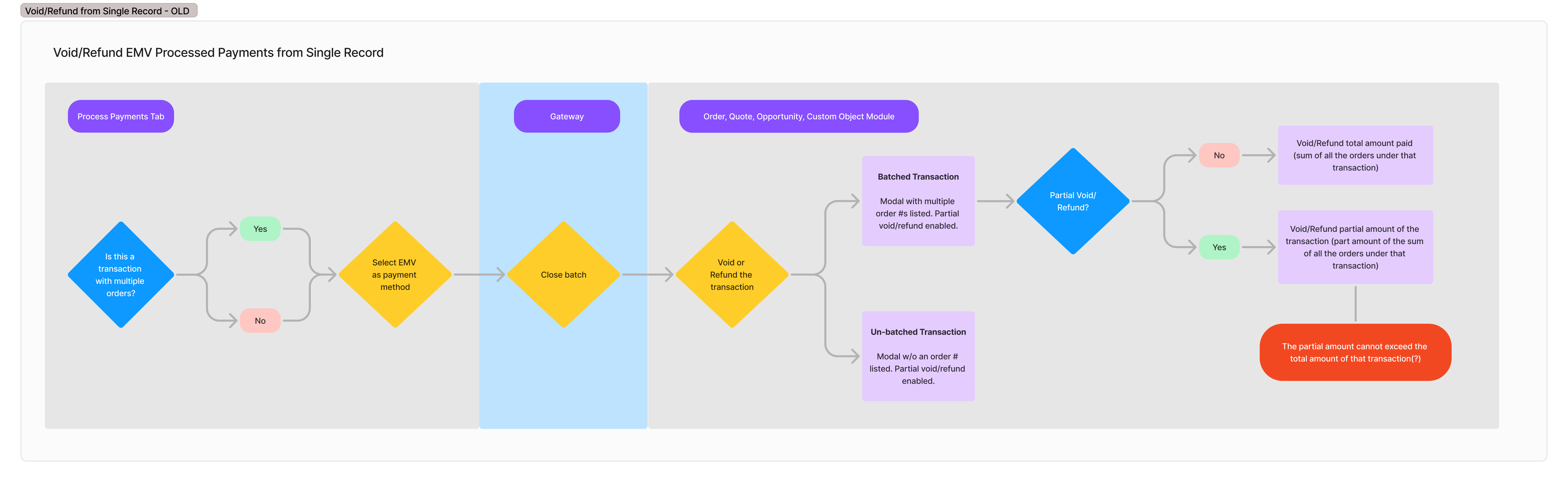
Partial Refunds Idea
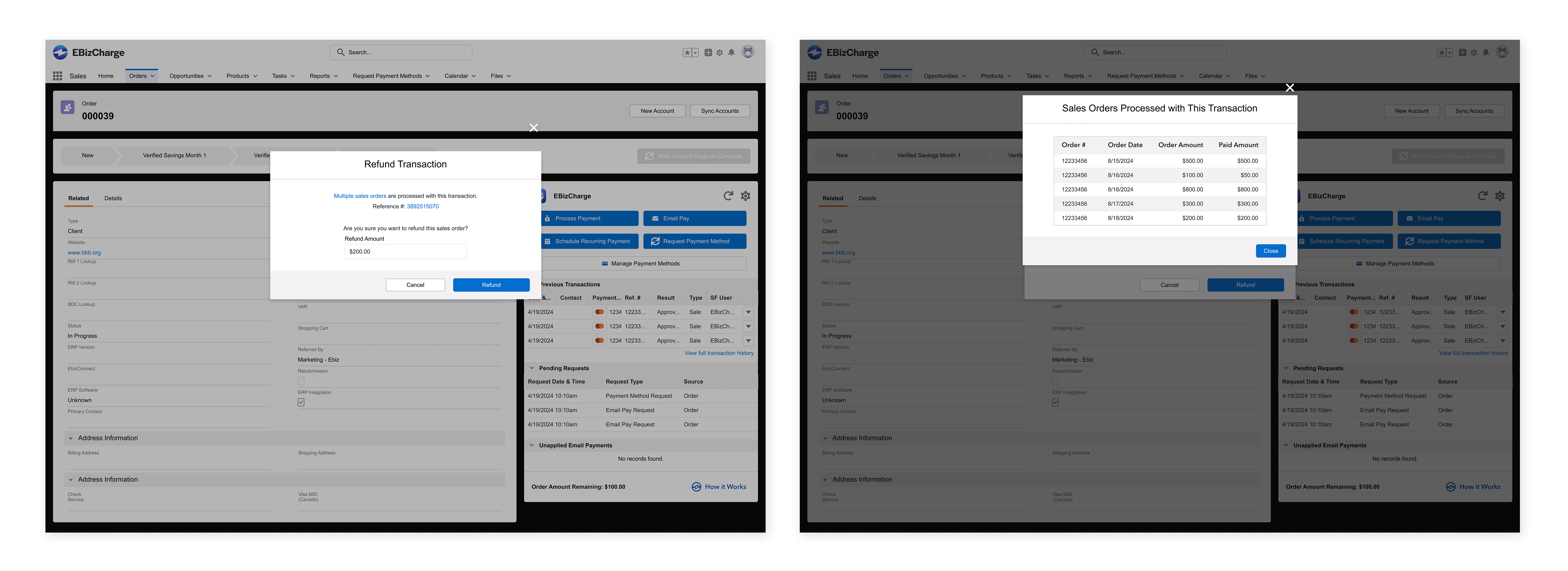
Since a single sales order is effectively part of a batched transaction, I proposed enabling partial refunds and allowing users to enter refund amounts for specific sales orders directly within the Order module. To help reduce user error, I also recommended pre-filling the sales order’s original amount by default.
Batched Transaction Refunds vs. Single Sales Order Refunds
To help users intuitively differentiate these actions, I suggested redirecting them to the Transaction screen for handling batch refunds, while keeping single-order refunds within the Order modal.
Associated Sales Order Display
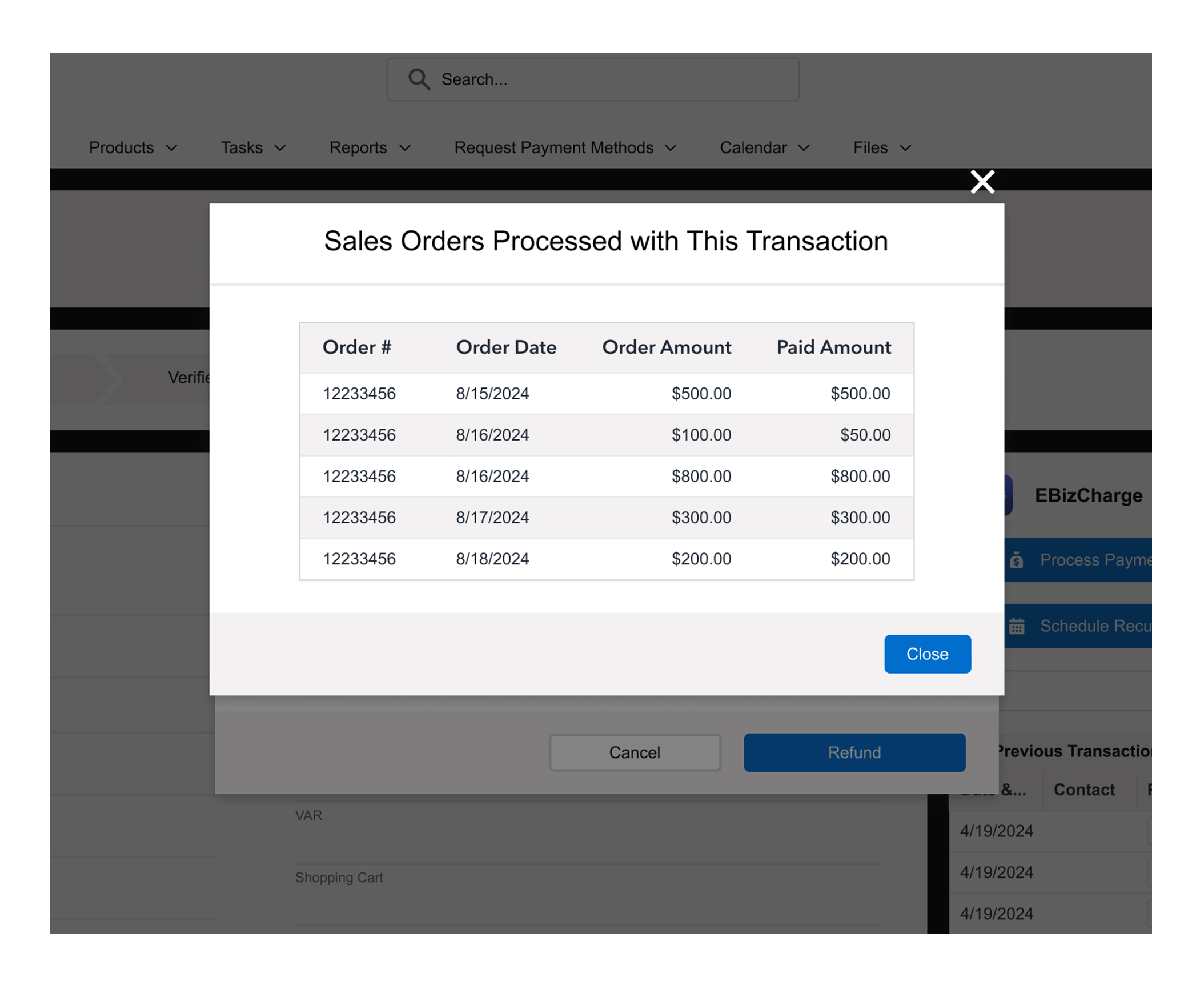
For enhanced readability, I recommended displaying linked sales orders in a separate modal (accessed from the confirmation modal) using a table layout.
Adjusting the Flow and Design
Technical Limitation
My proposed design was well-received by the Salesforce team. However, the team highlighted a technical limitation — the system couldn't associate a partial refund amount with a specific sales order within a batch-processed EMV transaction.
Idea Pushback
The team also suggested enabling batch refunds directly from the Order module to reduce user clicks, challenging the initial approach of redirecting users to the Transaction screen.
Discovery
Given technical constraints, I returned to the idea stage and iterated ideas by discussing and validating those limitations with the team. Through these discussions, I realized that allowing users to select a specific sales order for refund makes it possible to support individual refunds within batch-processed EMV transactions.
New Approach for Single Sales Order Refunds
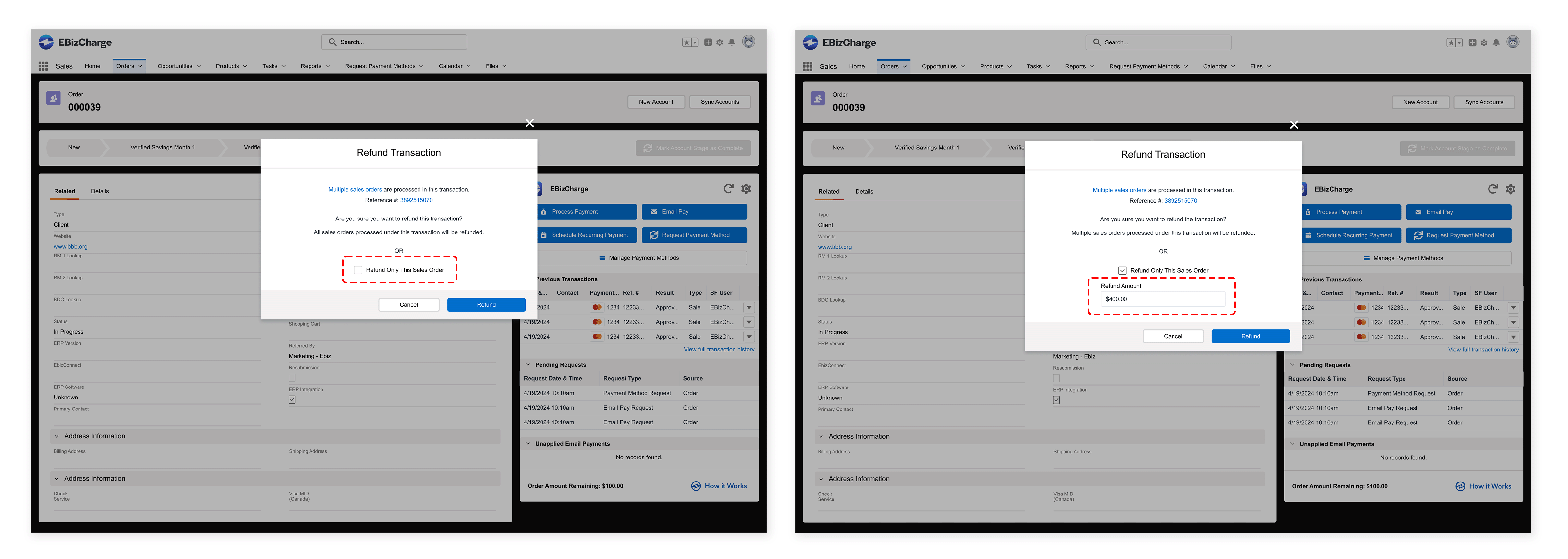
To enable this, I introduced a checkbox in the Order module that acts as a trigger to inform the system which sales order to refund. When the checkbox is selected, the system processes the refund for that specific order. I also proposed making the “Refund Amount” field appear, pre-filled with the original order amount, once the checkbox is checked.
Batched Transaction Refunds
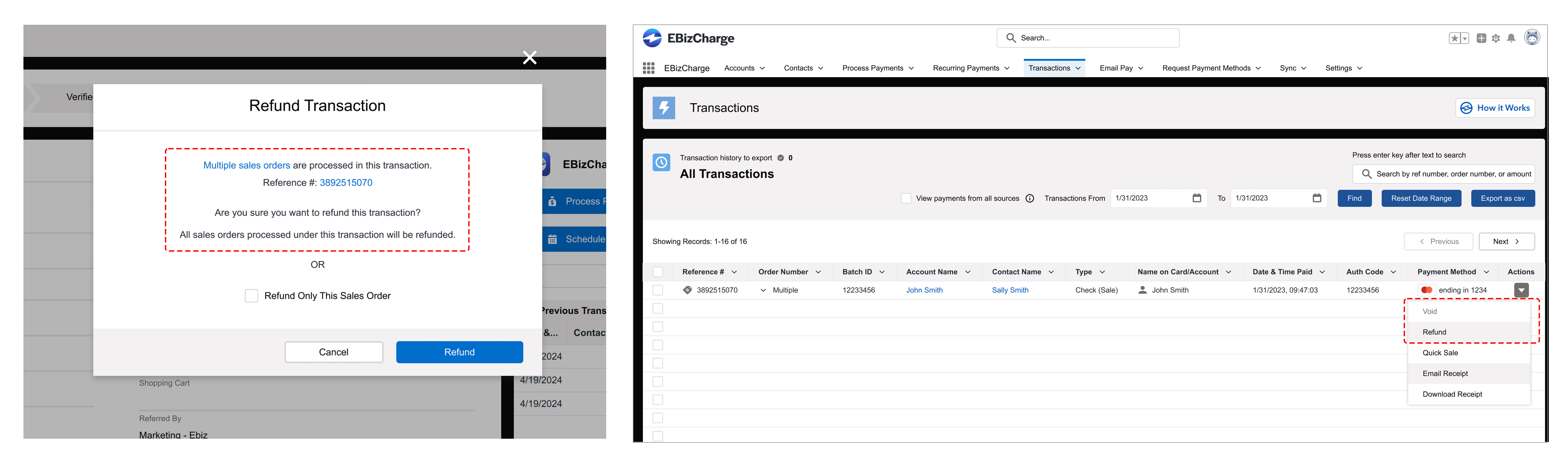
Recognizing that users may want to refund the entire parent transaction, I enabled the refund action directly from the Order module when the “Refund Only This Sales Order” checkbox is not selected. In other words, if the user does not check the box, the system refunds the full batch instead of a single order.
Final Solution
Single Sales Order Refunds
I solved the pain point of not being able to refund a single sales order from the Order module by adding a checkbox that acts as a trigger to tell the system which order to refund. When the checkbox is selected, the “Refund Amount” field is revealed and prefilled with the original sales order amount.
Batched Transaction Refunds
For full parent transaction refunds, I enabled that flow directly from the Order module when the “Refund Only This Sales Order” checkbox is not selected. An unchecked checkbox signals the system to refund the entire batch rather than a single order. I also included a hyperlink that directs users to the Transaction screen, allowing them to process partial refunds of parent transactions if needed.
Associated Sales Order Display
To improve visibility and scanability, I added a link in the Order modal that opens a separate modal showing all linked sales orders in table format. This approach keeps the main interface uncluttered while still giving users quick access to related order details.
Retrospective
Initially, technical constraints appeared to limit improvements to the user flow. However, by challenging these limitations and collaborating closely with cross-functional teams, I gained a deeper understanding of the issues. These collaborative efforts ultimately allowed me to overcome those constraints and align the solution more closely with user needs.
